

New Seller Pre-Shipment Setting
Configuring Your Default Shipping Address
Under the default shipping address, you can set your primary physical location for shipping orders. Please ensure that the Warehouse/Pickup address is accurate, as TikTok Shop will use this address to arrange courier pickup (pickup service only).Note: The Multi-Warehouse feature may only be available to selected sellers.
Steps:
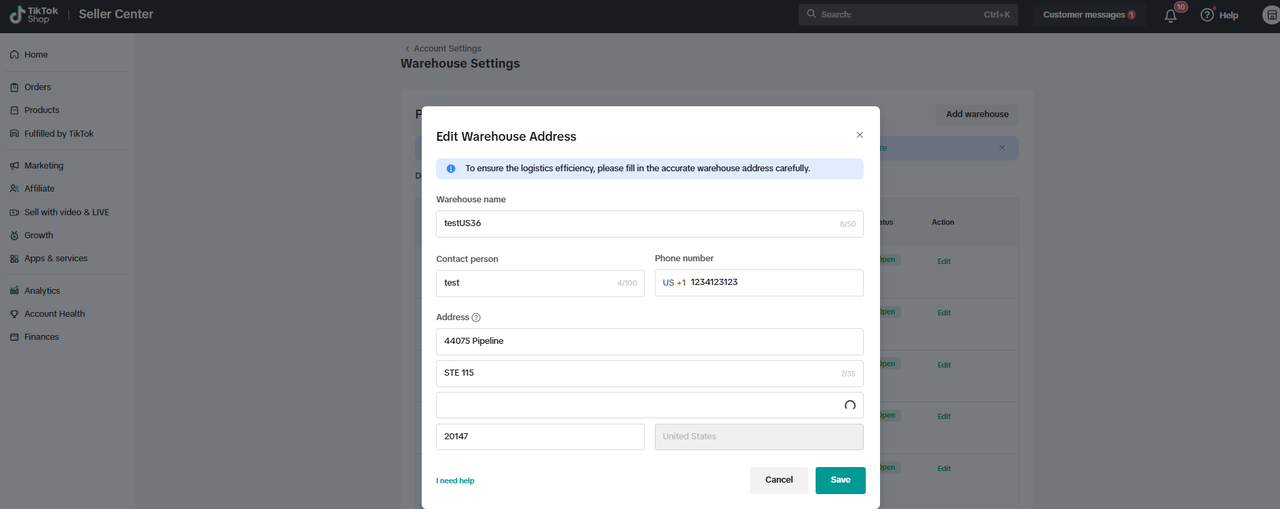
- In your TikTok Shop Seller Center, navigate to My Account > Account Settings > Warehouse Settings > Add Warehouse.
- Complete the details for Warehouse Name, Contact Person, Phone Number, and Street Address.
- Set Shipping Regions—these are the areas this warehouse can ship to.
- Click Save.
- Editing a Warehouse: You can edit a warehouse address or contact information, but deletion of a warehouse address is not permitted at this moment.

Default Action for Label Creation and Printing
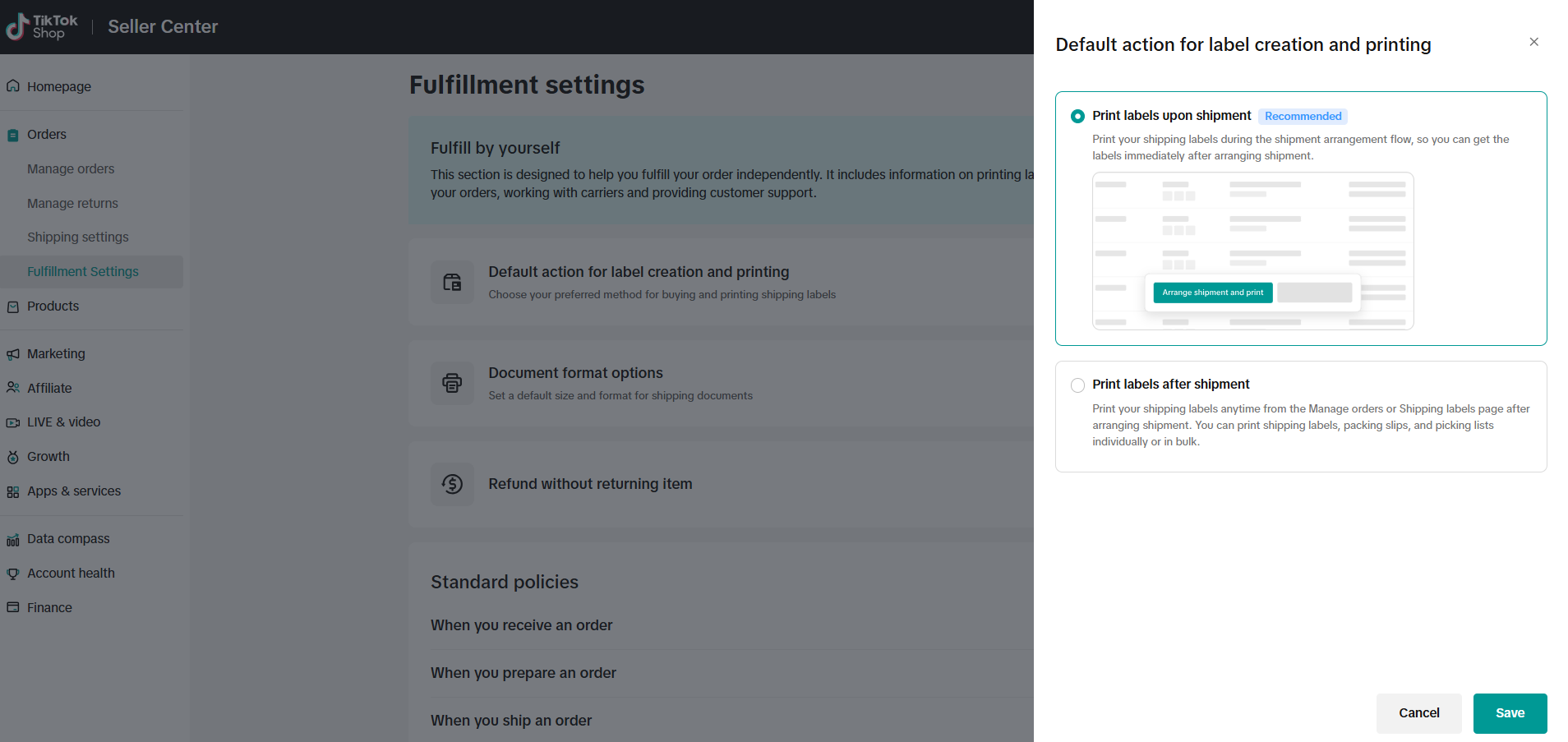
In your TikTok Shop Seller Center, navigate to Orders > Fulfillment Settings > Default Action for Label Creation and Printing, and then set up your preference.To accommodate your business needs, you can set a default action for handling shipping labels:
- Print Labels Upon Purchase: You can print your shipping labels during the label purchase flow. This allows you to get your labels immediately after buying them
- Print Shipping Labels After Purchase: After purchasing your shipping labels, you can print them anytime from the Manage Order page or the Shipping Labels page. Here, you can print shipping labels, packing slips, and picking lists either individually or in bulk.
 |

Document Format Options
As a merchant on our platform, you have the flexibility to customize your document format settings to match your packaging requirements. We offer a range of sizes for shipping labels and packing slips to ensure compatibility with your needs. To configure your document format settings, navigate in your TikTok Shop Seller Center to Orders > Fulfillment Settings > Document Format Options, then follow the steps to set up.- Shipping Label: 10.16 x 15.24 cm (4x6 inches)
- Packing Slip: A4 (210 x 297 mm) or Letter (215.9 x 279.4 mm / 8.5 x 11 inches)
- Picking List: A4 (210 x 297 mm) or Letter (215.9 x 279.4 mm / 8.5 x 11 inches)
- Choose between Print on 1 Page or Print on 2 Pages for the shipping label and packing list. If different sizes are selected, the system will automatically generate separate files.

- Shipping Label and Packing Slip Sizes (examples include the following options):
- Layout Options for Shipping Labels and Packing Slips:
Shipping Options Setting
By default, TikTok Shop selects Shipped via Platform as your delivery method. Shipped by Seller is only available to selected sellers until further notice.Steps to Set Your Shipping Option:
- In your TikTok Shop Seller Center, go to Orders > Fulfillment Settings > Shipping and Delivery to open the Shipping Options page.
- If eligible, you can choose between Shipped via Platform and Shipped by Seller.
- Setting Shipped via Platform as your preferred option means that orders will automatically use this method by default.

Shipped via Platform
TikTok Shop offers a Standard Shipping service for sellers, which is available for Mexico Local to Local sellers who subscribe to the service. Shipping times and rates are calculated automatically by the platform.- Standard Shipping is set as the default shipping option.
- Lead time for standard shipping is 1-7 business days, depending on the origin and destination postal codes. For remote areas identified by specific postal codes, the lead time extends to 4-10 business days.

Shipped by Seller
The Shipped by Seller option is available only to selected sellers, allowing you to handle shipments with your own provider.- To use this option, ensure that Shipped by Seller is enabled and select your preferred provider from the available list.
- When Shipped by Seller is set as your default shipping method, all new orders will be fulfilled by your chosen provider. Note: This change will not affect any existing orders.

Setting Up Shipped by Seller and Completing the Shipping Fees Template
If you choose Shipped by Seller as your preferred option, you must complete the Shipping Fees Template before uploading products. Otherwise, a reminder will appear when you attempt to upload a product.Steps:
- In your TikTok Shop Seller Center, go to Orders > Fulfillment Settings > Shipping and Delivery > Shipped by Seller > Shipping Template > Create.
- Complete the fields in the template:
- Template Name: Customizable field to label your template.
- Shipping From: Show your designated shipping warehouse location.
- Shipping To: Select areas eligible for delivery. Unselected states will be highlighted to minimize the risk of unintentional exclusion.
- Delivery Areas: Set unique shipping rates for different states.
- Shipping Services: Configure different services with varied performance levels and prices.
- Shipping Rules: Choose a rate model with tiered pricing based on:
- Product Quantity
- Product Weight
- Alternatively, you can set a Flat Rate for each shipping service.
- New Region: Define a new region group with specific shipping rules.
- Unassigned Areas: Products will be undeliverable in unassigned regions.
- Important:
- If a state is assigned to one region, it cannot be added to another unless removed from the initial group.
- Areas not included in any region will appear as "Unassigned Areas," making products undeliverable to those locations.
- Once the shipping template is complete, click Submit to save your settings.